下面将介绍在 Linux 环境下安装 Harbor 的详细步骤:
环境准备
推荐使用 Ubuntu、CentOS 等 Linux 操作系统,下面以 Ubuntu22.04 Linux 版本系统为例,信息如下:
hx@hxvm:~$ uname -a
Linux hxvm 6.5.0-45-generic #45~22.04.1-Ubuntu SMP PREEMPT_DYNAMIC Mon Jul 15 16:40:02 UTC 2 x86_64 x86_64 x86_64 GNU/Linux
由于 Harbor 是基于 Docker 和 Docker Compose 的,所以需要先安装它们:
服务器硬件配置:
软件版本:
Docker CE 17.06+
Docker Compose 1.18+
Harbor 安装方式有两种:
下载安装包
从 Harbor 官方网站(https://github.com/goharbor/harbor/releases)下载合适版本的 Harbor 离线安装包。例如,下载 harbor-offline-installer-v1.10.19.tgz,如下图:

使用“tar -xvzf”命令解压安装包:
root@hxvm:~# ls
harbor-offline-installer-v1.10.19.tgz  snap

root@hxvm:~# tar -xvzf harbor-offline-installer-v1.10.19.tgz
harbor/harbor.v1.10.19.tar.gz
harbor/prepare
harbor/LICENSE
harbor/install.sh
harbor/common.sh
harbor/harbor.yml
docker
配置 Harbor
进入解压后的 Harbor 目录,找到 harbor.yml.tmpl 文件,将其复制为 harbor.yml(如果已经存在 harbor.yml 文件,则直接修改,或者先备份该文件):
// 备份文件
root@hxvm:~/harbor# cp harbor.yml harbor.yml.bak

// 修改文件
root@hxvm:~/harbor# vim harbor.yml
修改配置如下图:
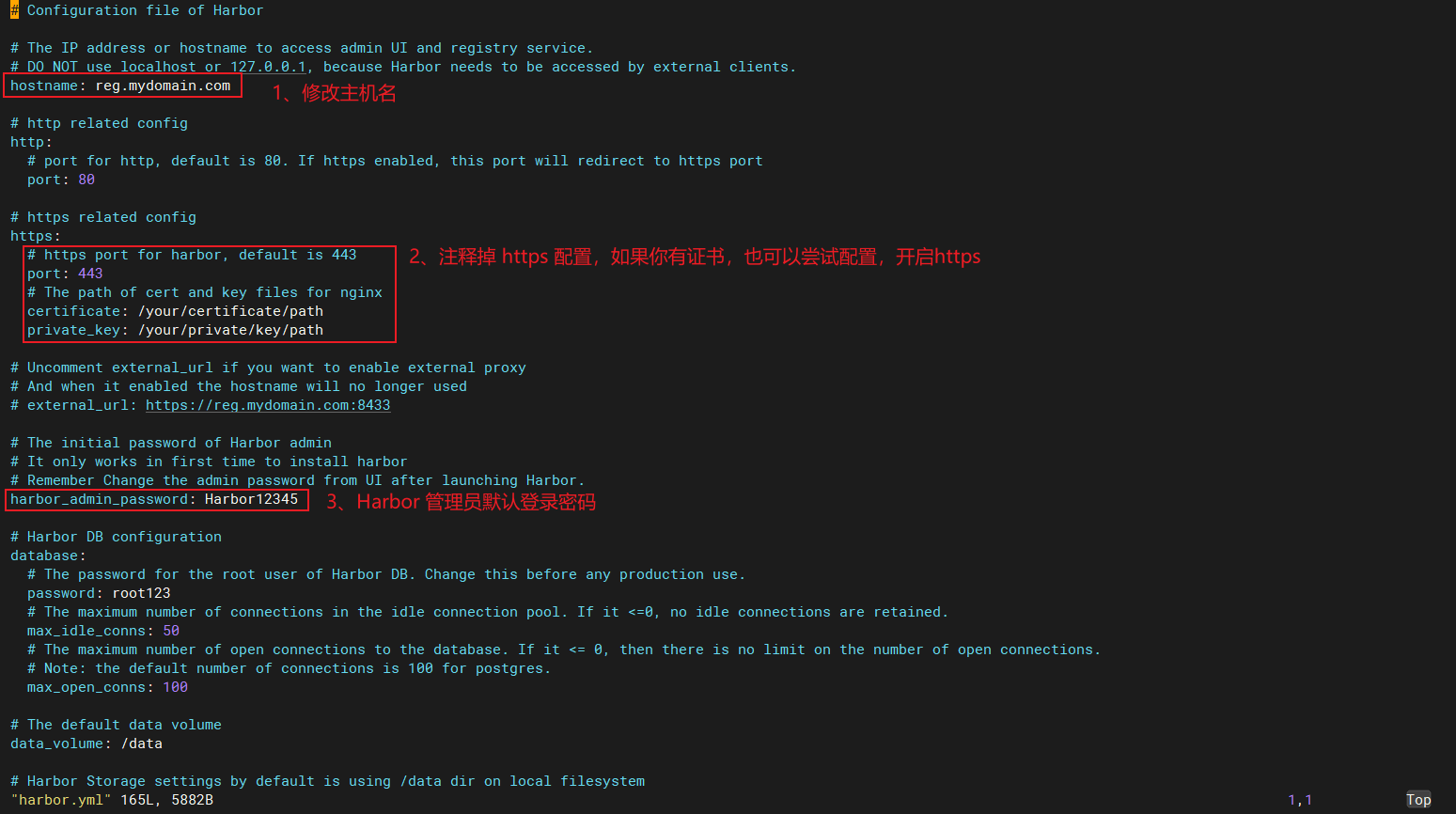
注意,你可以将上面的“hostname”修改为你的主机 IP 地址。
安装 Harbor
执行 prepare 脚本
在 Harbor 安装过程中,prepare 脚本是一个非常重要的步骤。它主要用于生成配置文件和证书等相关操作。这个脚本会根据 harbor.yml 配置文件中的内容,为 Harbor 的部署做前置准备工作。例如:
root@hxvm:~/harbor# ./prepare
prepare base dir is set to /root/harbor
Unable to find image 'goharbor/prepare:v1.10.19' locally
v1.10.19: Pulling from goharbor/prepare
4fdae29dfdff: Pull complete
41a49eff8cbc: Pull complete
c5058d4373da: Pull complete
9449096b4d42: Pull complete
9d31e497e52e: Pull complete
ef33dd0ecebd: Pull complete
84f3283ec0e2: Pull complete
Digest: sha256:ae40aa379049c3c816f4e4881c57e1206d5cc84db49f27df4d5fc4dfe1694e92
Status: Downloaded newer image for goharbor/prepare:v1.10.19
/usr/src/app/utils/configs.py:100: YAMLLoadWarning: calling yaml.load() without Loader=... is deprecated, as the default Loader is unsafe. Please read https://msg.pyyaml.org/load for full details.
  configs = yaml.load(f)
WARNING:root:WARNING: HTTP protocol is insecure. Harbor will deprecate http protocol in the future. Please make sure to upgrade to https
/usr/src/app/utils/configs.py:90: YAMLLoadWarning: calling yaml.load() without Loader=... is deprecated, as the default Loader is unsafe. Please read https://msg.pyyaml.org/load for full details.
  versions = yaml.load(f)
Generated configuration file: /config/log/logrotate.conf
Generated configuration file: /config/log/rsyslog_docker.conf
Generated configuration file: /config/nginx/nginx.conf
Generated configuration file: /config/core/env
Generated configuration file: /config/core/app.conf
Generated configuration file: /config/registry/config.yml
Generated configuration file: /config/registryctl/env
Generated configuration file: /config/db/env
Generated configuration file: /config/jobservice/env
Generated configuration file: /config/jobservice/config.yml
Generated and saved secret to file: /secret/keys/secretkey
Generated certificate, key file: /secret/core/private_key.pem, cert file: /secret/registry/root.crt
Generated configuration file: /compose_location/docker-compose.yml
Clean up the input dir
没有抛出错误信息,脚本执行成功。
执行 install 脚本
Harbor 的 install.sh 脚本是 Harbor 安装过程的核心脚本。它主要负责协调各个组件的安装和配置过程,将 Harbor 从一个未安装的状态转变为一个可以正常运行的服务。例如:
root@hxvm:~/harbor# ./install.sh

[Step 0]: checking if docker is installed ...

Note: docker version: 27.3.1

[Step 1]: checking docker-compose is installed ...

Note: docker-compose version: 1.29.2
...

[Step 5]: starting Harbor ...
Creating network "harbor_harbor" with the default driver
Creating harbor-log ... done
Creating registryctl   ... done
Creating registry      ... done
Creating harbor-db     ... done
Creating harbor-portal ... done
Creating redis         ... done
Creating harbor-core   ... done
Creating nginx             ... done
Creating harbor-jobservice ... done
✔ ----Harbor has been installed and started successfully.----
如果你看见了“✔ ----Harbor has been installed and started successfully.----”提示信息,恭喜 harbor 安装成功了。
验证安装
使用 docker ps 查看启动的容器,如下:
root@hxvm:~/harbor# docker ps
CONTAINER ID   IMAGE                                  COMMAND                  CREATED              STATUS                        PORTS                                     NAMES
7cbda3d8bc58   goharbor/harbor-jobservice:v1.10.19    "/harbor/harbor_jobs…"   About a minute ago   Up About a minute (healthy)                                             harbor-jobservice
251c56472156   goharbor/nginx-photon:v1.10.19         "nginx -g 'daemon of…"   About a minute ago   Up About a minute (healthy)   0.0.0.0:80->8080/tcp, [::]:80->8080/tcp   nginx
f88d0d889439   goharbor/harbor-core:v1.10.19          "/harbor/harbor_core"    About a minute ago   Up About a minute (healthy)                                             harbor-core
a6eb190ae501   goharbor/redis-photon:v1.10.19         "redis-server /etc/r…"   About a minute ago   Up About a minute (healthy)   6379/tcp                                  redis
2623f76d3f48   goharbor/harbor-portal:v1.10.19        "nginx -g 'daemon of…"   About a minute ago   Up About a minute (healthy)   8080/tcp                                  harbor-portal
d5b6f8a7ff6f   goharbor/harbor-db:v1.10.19            "/docker-entrypoint.…"   About a minute ago   Up About a minute (healthy)   5432/tcp                                  harbor-db
b658cc1886fb   goharbor/registry-photon:v1.10.19      "/home/harbor/entryp…"   About a minute ago   Up About a minute (healthy)   5000/tcp                                  registry
6e0fb196fded   goharbor/harbor-registryctl:v1.10.19   "/home/harbor/start.…"   About a minute ago   Up About a minute (healthy)                                             registryctl
bcb02c083816   goharbor/harbor-log:v1.10.19           "/bin/sh -c /usr/loc…"   About a minute ago   Up About a minute (healthy)   127.0.0.1:1514->10514/tcp                 harbor-log
上面显示了所有 goharbor 相关的容器。
使用浏览器访问 http://主机 ip:80 地址,如下图:

如果你能正常看到 Harbor 登录页面,安装成功了,可以进行下一步学习了……🤞🤞🤞🤞
安装问题
未安装 docker-compose
错误详细信息如下:
root@hxvm:~/harbor# ./install.sh

[Step 0]: checking if docker is installed ...

Note: docker version: 27.1.1

[Step 1]: checking docker-compose is installed ...
✖ Need to install docker-compose(1.18.0+) by yourself first and run this script again.
上面错误信息提示未安装 docker-compose,并且 docker-compose 需要 1.18.0 以上版本,使用如下命令安装 docker-compose,如下:
// 安装 docker-compose
root@hxvm:~/harbor# apt install docker-compose
Reading package lists... Done
Building dependency tree... Done
Reading state information... Done
...
Setting up docker-ce (5:27.3.1-1~ubuntu.22.04~jammy) ...
Setting up docker-compose (1.29.2-1) ...
Processing triggers for man-db (2.10.2-1) ...

// 查看 docker-compose 版本信息
root@hxvm:~/harbor# docker-compose -version
docker-compose version 1.29.2, build unknown
安装好 docker-compose 后,再试试执行 install.sh 脚本。
存在同名容器
执行 install.sh 过程中,可能会出现容器名称冲突问题,详细错误如下:
[Step 5]: starting Harbor ...
Creating network "harbor_harbor" with the default driver
Creating harbor-log ... done
Creating harbor-db  ...
Creating redis         ... error
Creating registryctl ...
Creating harbor-db     ... done
Creating registry      ...
Creating registryctl   ... done
Creating harbor-portal ... done
Creating registry      ... done

ERROR: for redis  Cannot create container for service redis: Conflict. The container name "/redis" is already in use by container "007c99c6e00996d0c8d12312ab3d729a63278310a68779ce827b487ac5c487af". You have to remove (or rename) that container to be able to reuse that name.
ERROR: Encountered errors while bringing up the project.
上面错误信息提示名为“/redis”的容器已经存在。我们需要将该容器删除,如下:
// 查看容器
root@hxvm:~/harbor# docker ps -a | grep redis
007c99c6e009   590b81f2fea1                           "docker-entrypoint.s…"   2 weeks ago     Exited (0) 9 minutes ago                                 redis

// 如果容器正在运行,则需要先停止容器
docker stop redis

// 删除容器
root@hxvm:~/harbor# docker rm redis
redis


 川公网安备51010802032098